> ## Documentation Index
> Fetch the complete documentation index at: https://klef.ai/docs/llms.txt
> Use this file to discover all available pages before exploring further.
# Connect an MCP Client
Klef's Model Context Protocol (MCP) server provides tools for AI agents to interact with your workspace. MCP support is included in the [Standard and Enterprise tiers](/docs/reference/subscription-tiers-and-credits). Using MCP does not consume AI credits.
## Grant a Member MCP Access
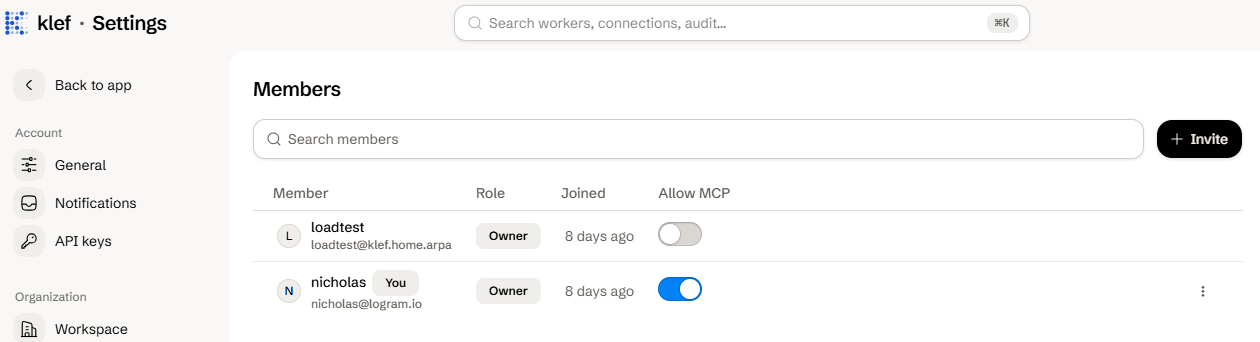
Each member has to be allowed to connect before they can use MCP. Only [Owner or Admin](/docs/reference/roles-and-permissions) roles can alter a member's access.
Navigate to **Settings > Members**.
Find the member's row and turn on **Allow MCP**. You may turn it off again to immediately disconnect them.
 ## Connect to MCP
[Create an API key](/docs/how-to/manage-api-keys) and copy the secret. The key's scopes decide what the agent can do, so grant only the [permissions](/docs/reference/roles-and-permissions) it needs.
Pass your secret as a bearer token under the `Authorization` header and point the request to your workspace's subdomain (`acme` in the example below).
In Claude Code:
```bash theme={null}
claude mcp add --transport http klef https://acme.klef.ai/api/mcp \
--header "Authorization: Bearer klef_sk_..."
```
Please refer to your client's documentation for the exact steps:
* [Claude Code](https://code.claude.com/docs/en/mcp)
* [Codex](https://developers.openai.com/codex/mcp)
* [Cursor](https://cursor.com/docs/mcp)
* [Gemini CLI](https://geminicli.com/docs/tools/mcp-server/)
* [VS Code](https://code.visualstudio.com/docs/agent-customization/mcp-servers)
* [Zed](https://zed.dev/docs/ai/mcp)
Ask the agent to read your inbox. If it can't, check the [troubleshooting section](#troubleshooting) below.
Klef's MCP server does not support OAuth or local (stdio) transports. The only transport currently supported is HTTP with an API key.
## Review and Apply Proposed Changes
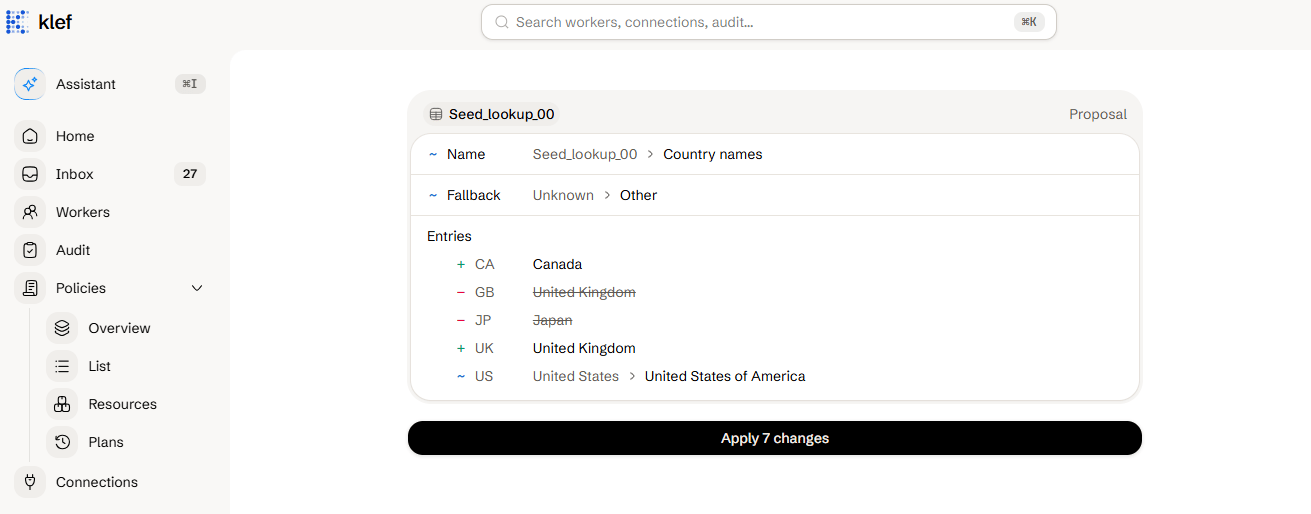
To prevent agents from making mistakes when changing your workspace in ways that affect your connected systems, Klef requires a human to review and confirm all agent-proposed changes beforehand. If an agent proposes a change, you'll receive a link to review and apply it.
Open the link the agent gives you.
Review the changes and click the **Apply** button. If you don't approve the proposal within 24 hours, it expires.
## Connect to MCP
[Create an API key](/docs/how-to/manage-api-keys) and copy the secret. The key's scopes decide what the agent can do, so grant only the [permissions](/docs/reference/roles-and-permissions) it needs.
Pass your secret as a bearer token under the `Authorization` header and point the request to your workspace's subdomain (`acme` in the example below).
In Claude Code:
```bash theme={null}
claude mcp add --transport http klef https://acme.klef.ai/api/mcp \
--header "Authorization: Bearer klef_sk_..."
```
Please refer to your client's documentation for the exact steps:
* [Claude Code](https://code.claude.com/docs/en/mcp)
* [Codex](https://developers.openai.com/codex/mcp)
* [Cursor](https://cursor.com/docs/mcp)
* [Gemini CLI](https://geminicli.com/docs/tools/mcp-server/)
* [VS Code](https://code.visualstudio.com/docs/agent-customization/mcp-servers)
* [Zed](https://zed.dev/docs/ai/mcp)
Ask the agent to read your inbox. If it can't, check the [troubleshooting section](#troubleshooting) below.
Klef's MCP server does not support OAuth or local (stdio) transports. The only transport currently supported is HTTP with an API key.
## Review and Apply Proposed Changes
To prevent agents from making mistakes when changing your workspace in ways that affect your connected systems, Klef requires a human to review and confirm all agent-proposed changes beforehand. If an agent proposes a change, you'll receive a link to review and apply it.
Open the link the agent gives you.
Review the changes and click the **Apply** button. If you don't approve the proposal within 24 hours, it expires.
 ## Rate Limits
| Limit | Amount |
| - | - |
| Calls per API key | 60/min |
| Calls per workspace, across all keys | 300/min |
| Calls running at once per workspace | 10 |
## Troubleshooting
| Response | Cause |
| - | - |
| `401` | The API key is missing, invalid, expired, or revoked. |
| `403` | The API key's owner is not allowed to use MCP, or the workspace is not on the Standard or Enterprise tier. |
| `429` | The workspace or API key has exceeded its rate limit. |
The scopes an API key can hold.
Add teammates to the workspace.
This documentation is built and hosted on [Mintlify](https://mintlify.com), a developer documentation platform.
## Rate Limits
| Limit | Amount |
| - | - |
| Calls per API key | 60/min |
| Calls per workspace, across all keys | 300/min |
| Calls running at once per workspace | 10 |
## Troubleshooting
| Response | Cause |
| - | - |
| `401` | The API key is missing, invalid, expired, or revoked. |
| `403` | The API key's owner is not allowed to use MCP, or the workspace is not on the Standard or Enterprise tier. |
| `429` | The workspace or API key has exceeded its rate limit. |
The scopes an API key can hold.
Add teammates to the workspace.
This documentation is built and hosted on [Mintlify](https://mintlify.com), a developer documentation platform.