> ## Documentation Index
> Fetch the complete documentation index at: https://klef.ai/docs/llms.txt
> Use this file to discover all available pages before exploring further.
# Manage API keys
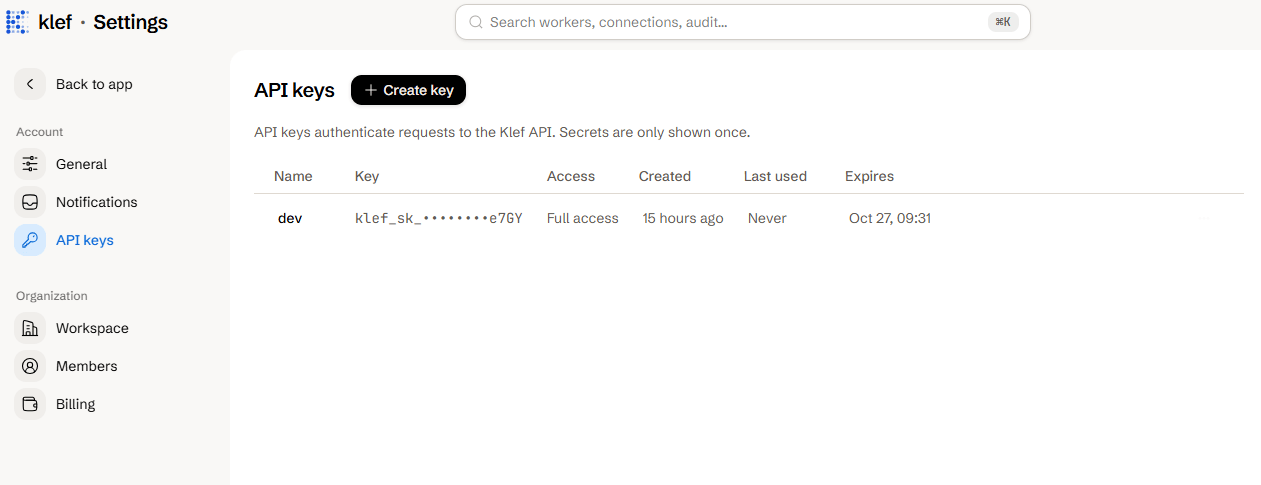
Members can manage their own keys from **Settings > API keys**.
## Create a Key
Navigate to **Settings > API keys** and select **Create key**.
 Give the key a name. Choose **Full access**, or **Custom scopes** to grant only the [permissions](/docs/reference/roles-and-permissions) it needs.
Keys are maximally scoped to your permissions, so you cannot grant any permission you do not hold yourself. As such, **Full access** means your full permissions.
Pick an expiration (30, 60, 90, 120, or 365 days, or no expiration). The default is 90 days.
Select **Create key** and copy the secret. The secret is only shown once.
## Use a Key
When making API requests, pass your secret as a bearer token under the `Authorization` header and point the request to your workspace's subdomain (`acme` in the example below).
```bash theme={null}
curl https://acme.klef.ai/api/workers \
-H "Authorization: Bearer klef_sk_..."
```
## Rotate a Key
Open the key's row menu, select **Rotate**, and copy the new secret. The key retains its name and scopes, but the old secret stops working immediately. Rotate whenever a secret has leaked, may have leaked, or was forgotten.
Only rotate when you are able to deploy a replacement. Anything using the old secret will fail immediately until you give it the new one.
## Revoke a Key
Open the key's row menu and select **Revoke**. The key stops working immediately and anything using it can no longer authenticate.
The scopes a key can hold.
Add teammates to the workspace.
Give the key a name. Choose **Full access**, or **Custom scopes** to grant only the [permissions](/docs/reference/roles-and-permissions) it needs.
Keys are maximally scoped to your permissions, so you cannot grant any permission you do not hold yourself. As such, **Full access** means your full permissions.
Pick an expiration (30, 60, 90, 120, or 365 days, or no expiration). The default is 90 days.
Select **Create key** and copy the secret. The secret is only shown once.
## Use a Key
When making API requests, pass your secret as a bearer token under the `Authorization` header and point the request to your workspace's subdomain (`acme` in the example below).
```bash theme={null}
curl https://acme.klef.ai/api/workers \
-H "Authorization: Bearer klef_sk_..."
```
## Rotate a Key
Open the key's row menu, select **Rotate**, and copy the new secret. The key retains its name and scopes, but the old secret stops working immediately. Rotate whenever a secret has leaked, may have leaked, or was forgotten.
Only rotate when you are able to deploy a replacement. Anything using the old secret will fail immediately until you give it the new one.
## Revoke a Key
Open the key's row menu and select **Revoke**. The key stops working immediately and anything using it can no longer authenticate.
The scopes a key can hold.
Add teammates to the workspace.