> ## Documentation Index
> Fetch the complete documentation index at: https://klef.ai/docs/llms.txt
> Use this file to discover all available pages before exploring further.
# Manage billing
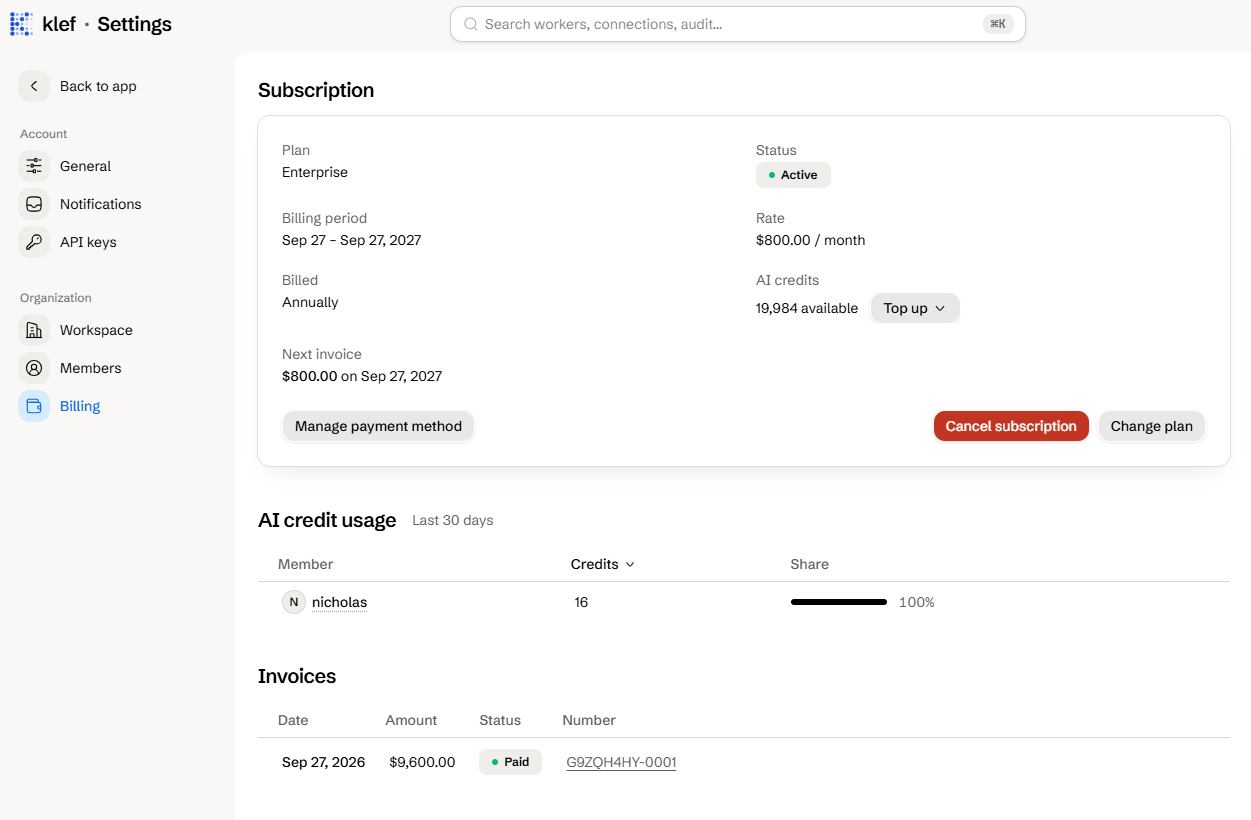
Only [Owner and Billing manager](/docs/reference/roles-and-permissions) roles can view and manage billing. Navigate to **Settings > Billing** in the [dashboard](https://klef.ai/app/settings/billing).
For more information on what each tier includes, how credits work, and what happens during a lapsed subscription, see [Subscription Tiers and credits](/docs/reference/subscription-tiers-and-credits).
 ## Change Your Plan or Billing Period
Select **Change plan**.
Select either monthly or annual.
Select the tier you want, or the same tier on the other billing period.
The change lands once its invoice is paid. If the card is declined, you stay on your current tier and period.
Stripe prorates the difference and invoices you immediately. Your new plan will take effect once the invoice has been paid. Switching billing periods [starts a new billing cycle](/docs/reference/subscription-tiers-and-credits#changing-tiers-or-billing-periods), and an upgrade [raises your AI credit allowance](/docs/reference/subscription-tiers-and-credits#ai-credits).
## Top Up AI Credits
Your subscription tier grants you a certain allotment of AI credit usage per month. If you run out, you may top up your balance. Purchased credits do not expire, and are only consumed after running out of your subscription tier allotment.
Select **Top up**, beside **AI credits**.
Choose a credit pack.
Checkout on Stripe.
## See Who Is Spending AI Credits
The **AI credits** section shows the total number of credits used in the last 30 days, with a breakdown of usage by member.
## Update Your Payment Method
Click **Manage payment method**. The Stripe customer portal will open, where you can change the card on file.
## Pay or Download an Invoice
In the **Invoices** table, click the invoice link, the download icon, or the **Pay now** button on an unpaid invoice. The Stripe invoice will open, where you can download the invoice as a PDF or make a payment.
## Fix a Failed Payment
If a renewal charge fails, a past-due banner will appear on the billing page. Either:
* Click **Update payment method** in the banner, and add a working card.
* In the **Invoices** table, select **Pay now** on the invoice.
If your payment does not go through within 21 days of the due date, your subscription lapses and your workspace is locked.
## Cancel Your Subscription
Select **Cancel subscription**.
Select a reason for canceling, and optionally add a comment.
We read every comment and try to respond to any questions or concerns.
Click **Cancel subscription**.
Your subscription stays active until the end of the period you have paid for. Select **Resume subscription** any time before then to resume it.
What each tier includes and how credits work.
Who can manage billing.
## Change Your Plan or Billing Period
Select **Change plan**.
Select either monthly or annual.
Select the tier you want, or the same tier on the other billing period.
The change lands once its invoice is paid. If the card is declined, you stay on your current tier and period.
Stripe prorates the difference and invoices you immediately. Your new plan will take effect once the invoice has been paid. Switching billing periods [starts a new billing cycle](/docs/reference/subscription-tiers-and-credits#changing-tiers-or-billing-periods), and an upgrade [raises your AI credit allowance](/docs/reference/subscription-tiers-and-credits#ai-credits).
## Top Up AI Credits
Your subscription tier grants you a certain allotment of AI credit usage per month. If you run out, you may top up your balance. Purchased credits do not expire, and are only consumed after running out of your subscription tier allotment.
Select **Top up**, beside **AI credits**.
Choose a credit pack.
Checkout on Stripe.
## See Who Is Spending AI Credits
The **AI credits** section shows the total number of credits used in the last 30 days, with a breakdown of usage by member.
## Update Your Payment Method
Click **Manage payment method**. The Stripe customer portal will open, where you can change the card on file.
## Pay or Download an Invoice
In the **Invoices** table, click the invoice link, the download icon, or the **Pay now** button on an unpaid invoice. The Stripe invoice will open, where you can download the invoice as a PDF or make a payment.
## Fix a Failed Payment
If a renewal charge fails, a past-due banner will appear on the billing page. Either:
* Click **Update payment method** in the banner, and add a working card.
* In the **Invoices** table, select **Pay now** on the invoice.
If your payment does not go through within 21 days of the due date, your subscription lapses and your workspace is locked.
## Cancel Your Subscription
Select **Cancel subscription**.
Select a reason for canceling, and optionally add a comment.
We read every comment and try to respond to any questions or concerns.
Click **Cancel subscription**.
Your subscription stays active until the end of the period you have paid for. Select **Resume subscription** any time before then to resume it.
What each tier includes and how credits work.
Who can manage billing.