> ## Documentation Index
> Fetch the complete documentation index at: https://klef.ai/docs/llms.txt
> Use this file to discover all available pages before exploring further.
# Manage members
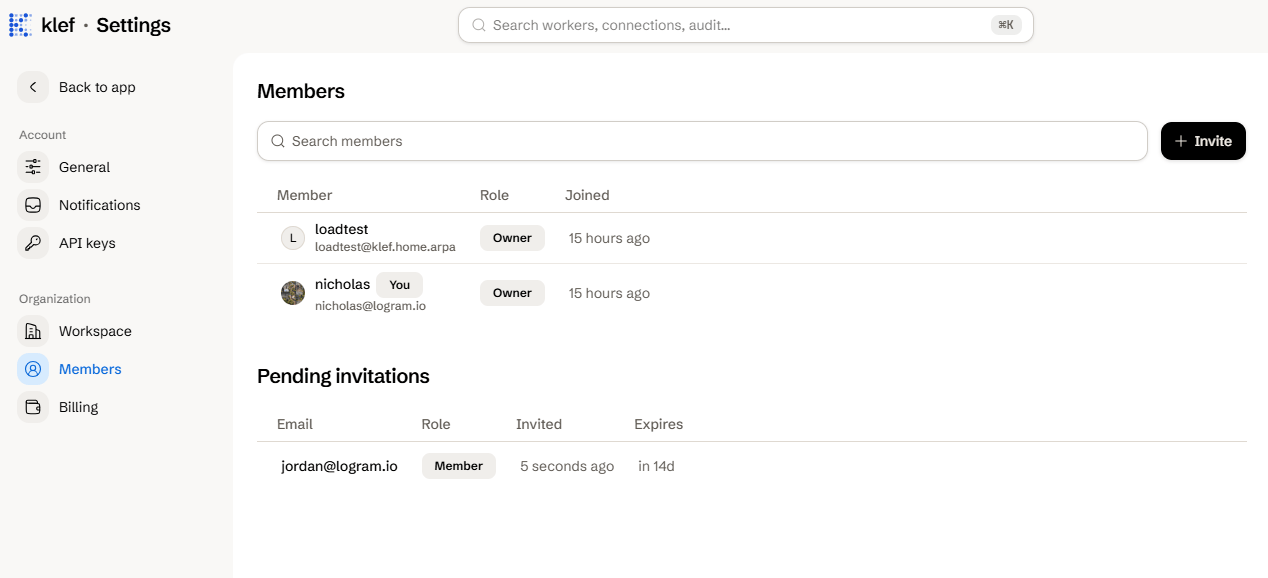
Managing members requires the [Owner or Admin](/docs/reference/roles-and-permissions) role. Navigate to **Settings > Members** in the [dashboard](https://klef.ai/app/settings/members).
 ## Invite a Member
Select **Invite**, and then enter their email address and choose their [role](/docs/reference/roles-and-permissions).
Click **Send invite**.
The invitee receives an email with a link to join your workspace. The link will expire after 14 days.
## Resend or Revoke an Invitation
In the **Pending invitations** table, open the invitation's row menu and select either **Resend** or **Revoke**.
## Change a Member's Role
In the members table, open the member's **Role** dropdown and choose a new role.
You cannot assign the [Owner or Support](/docs/reference/roles-and-permissions) roles, nor can you change your own role.
## Remove a Member or Leave the Workspace
In the members table, open the member's row menu and select **Remove**, then click to confirm. To leave the workspace yourself, select **Leave workspace** on your own row. Neither is allowed for the [last owner](/docs/reference/roles-and-permissions), and only an owner can remove another owner.
What each role can do.
Authenticate to the Klef API.
## Invite a Member
Select **Invite**, and then enter their email address and choose their [role](/docs/reference/roles-and-permissions).
Click **Send invite**.
The invitee receives an email with a link to join your workspace. The link will expire after 14 days.
## Resend or Revoke an Invitation
In the **Pending invitations** table, open the invitation's row menu and select either **Resend** or **Revoke**.
## Change a Member's Role
In the members table, open the member's **Role** dropdown and choose a new role.
You cannot assign the [Owner or Support](/docs/reference/roles-and-permissions) roles, nor can you change your own role.
## Remove a Member or Leave the Workspace
In the members table, open the member's row menu and select **Remove**, then click to confirm. To leave the workspace yourself, select **Leave workspace** on your own row. Neither is allowed for the [last owner](/docs/reference/roles-and-permissions), and only an owner can remove another owner.
What each role can do.
Authenticate to the Klef API.