
Create a Key
1
Open API keys
Navigate to Settings > API keys and select Create key.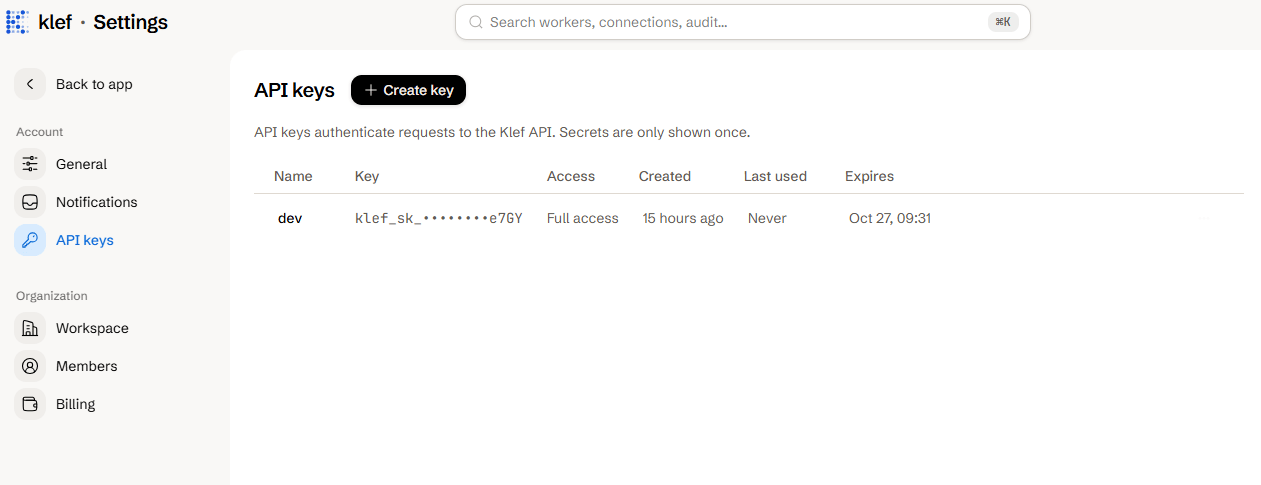
2
Name and scope it
Give the key a name. Choose Full access, or Custom scopes to grant only the permissions it needs.
Keys are maximally scoped to your permissions, so you cannot grant any permission you do not hold yourself. As such, Full access means your full permissions.
3
Set an expiry
Pick an expiration (30, 60, 90, 120, or 365 days, or no expiration). The default is 90 days.
4
Copy the secret
Select Create key and copy the secret. The secret is only shown once.
Use a Key
When making API requests, pass your secret as a bearer token under theAuthorization header and point the request to your workspace’s subdomain (acme in the example below).
Rotate a Key
Open the key’s row menu, select Rotate, and copy the new secret. The key retains its name and scopes, but the old secret stops working immediately. Rotate whenever a secret has leaked, may have leaked, or was forgotten.Revoke a Key
Open the key’s row menu and select Revoke. The key stops working immediately and anything using it can no longer authenticate.Roles and permissions
The scopes a key can hold.
Manage members
Add teammates to the workspace.