
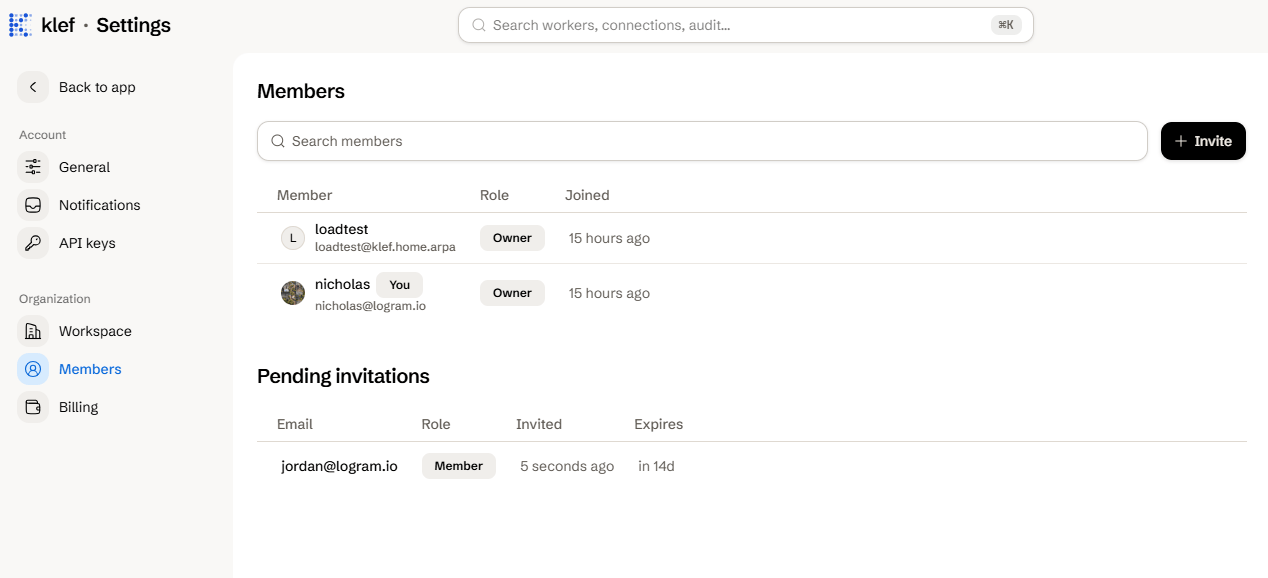
Invite a Member
1
Add the member
Select Invite, and then enter their email address and choose their role.
2
Send the invite
Click Send invite.The invitee receives an email with a link to join your workspace. The link will expire after 14 days.
Resend or Revoke an Invitation
In the Pending invitations table, open the invitation’s row menu and select either Resend or Revoke.Change a Member’s Role
In the members table, open the member’s Role dropdown and choose a new role. You cannot assign the Owner or Support roles, nor can you change your own role.Remove a Member or Leave the Workspace
In the members table, open the member’s row menu and select Remove, then click to confirm. To leave the workspace yourself, select Leave workspace on your own row. Neither is allowed for the last owner, and only an owner can remove another owner.Roles and permissions
What each role can do.
Manage API keys
Authenticate to the Klef API.