
Grant a Member MCP Access
Each member has to be allowed to connect before they can use MCP. Only Owner or Admin roles can alter a member’s access.1
Open Members
Navigate to Settings > Members.
2
Turn on Allow MCP
Find the member’s row and turn on Allow MCP. You may turn it off again to immediately disconnect them.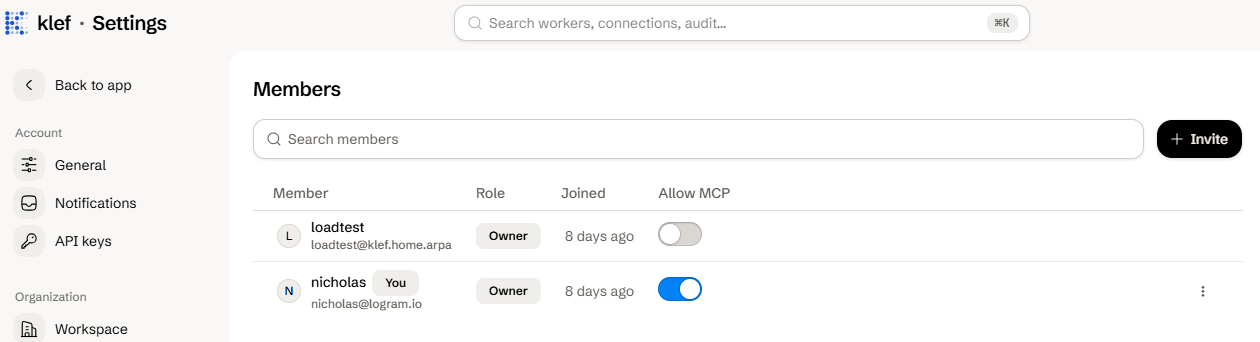
Connect to MCP
1
Create an API key
Create an API key and copy the secret. The key’s scopes decide what the agent can do, so grant only the permissions it needs.
2
Add the server to your client
Pass your secret as a bearer token under the Please refer to your client’s documentation for the exact steps:
Authorization header and point the request to your workspace’s subdomain (acme in the example below).In Claude Code:3
Verify it works
Ask the agent to read your inbox. If it can’t, check the troubleshooting section below.
Review and Apply Proposed Changes
To prevent agents from making mistakes when changing your workspace in ways that affect your connected systems, Klef requires a human to review and confirm all agent-proposed changes beforehand. If an agent proposes a change, you’ll receive a link to review and apply it.1
Open the link the agent gives you.
2
Review the changes and click the Apply button. If you don’t approve the proposal within 24 hours, it expires.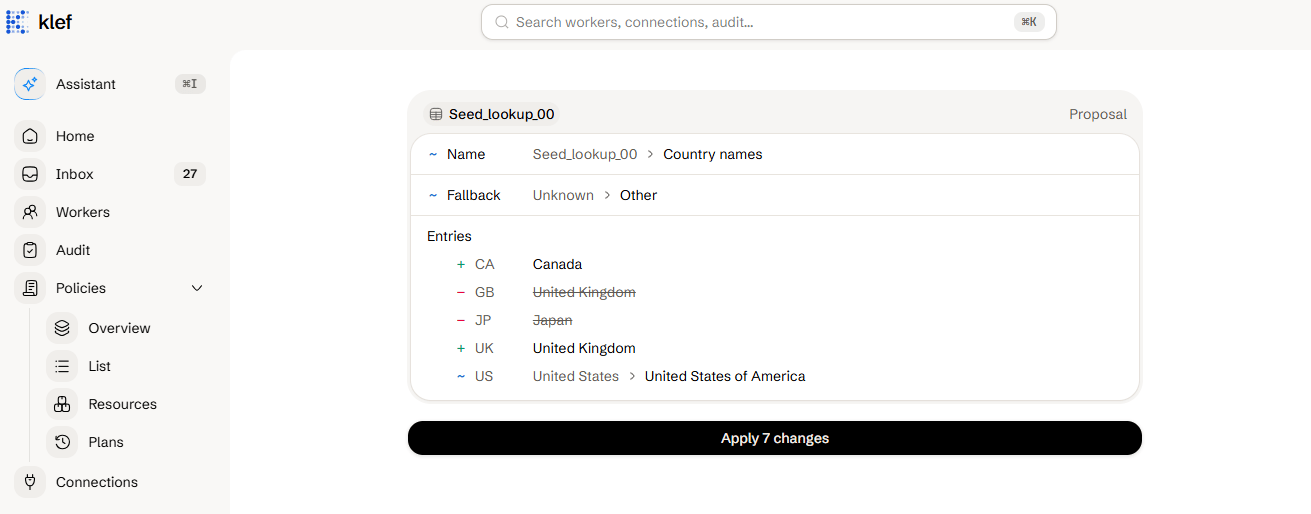
Rate Limits
Troubleshooting
Roles and Permissions
The scopes an API key can hold.
Manage Members
Add teammates to the workspace.